Stop Leaving Free Money on the Table: A Beginner's Guide to Gemini for Google Workspace
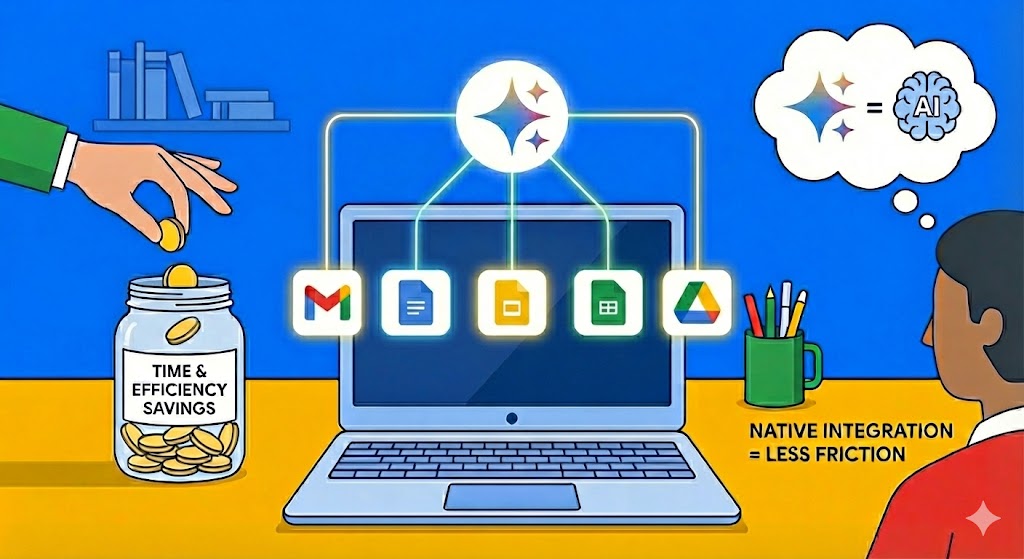
If you have a Google Workspace account and you're not using Gemini, you're like an employee who works at a company with a 401k match but never contributes. You're leaving money on the table, except in this case, the "money" is time, efficiency, and the ability to create better content with less effort.
I see this all the time. Business owners pay for Google Workspace, use Gmail and Docs every single day, and then leave those apps to use ChatGPT or other AI tools for help with writing, research, or data analysis. There's nothing inherently wrong with that approach, I use multiple AI tools every day myself, including both Gemini and ChatGPT. But if you're paying for Workspace and not taking advantage of Gemini, you're working harder than you need to.
Let me explain why Gemini should be part of your daily workflow, even if you love your other AI tools.
What Is Gemini (And How Is It Like ChatGPT)?
If you're familiar with ChatGPT, you already understand the basics of Gemini. Both are large language models built by major tech companies (Gemini by Google, ChatGPT by OpenAI). Both can help you write emails, summarize documents, analyze data, brainstorm ideas, and answer complex questions.
The key difference? Gemini lives natively inside your Google Workspace apps. That means it's built directly into Gmail, Google Docs, Google Sheets, and Google Drive, the tools you're already using every single day.
The Power of Native Integration: Reducing Friction in Your Workflow
Here's a scenario you've probably lived: You're drafting an important email in Gmail, and you're stuck. You need help with the wording, or you want to make sure your tone is right. So you open a new tab, navigate to ChatGPT, type or paste your draft, wait for a response, then copy the result back into Gmail.
It's not a huge hassle, but it is friction. And friction has a cost, not just in time, but in mental energy. Every time you switch contexts, you lose a little focus. Your brain has to shift gears, remember where you were, and get back into the flow.
With Gemini in Google Workspace, that friction disappears.
In my own businesses, my title company and my real estate coaching practice, I've started using Gemini extensively, and it's dramatically improved our efficiency. Instead of leaving what I'm working on to ask an AI for help, I just use Gemini right there in the document or email. Whether I'm in Docs or Gmail, Gemini is available in the sidebar or through the "Help me write" function. I don't have to context-switch. I stay in the flow.
Let me give you some specific examples of how this works in the apps you use most.
Gmail: Crafting the Perfect Response
We've all been there, staring at an email, knowing we need to respond, but struggling to find the right words. Maybe it's a delicate situation with a client. Maybe you're not sure how formal or casual to be. Maybe you just don't have the mental bandwidth to compose something from scratch.
With Gemini in Gmail, you can use the "Help me write" feature to draft a response in seconds. You can even tweak the tone, make it more formal, more concise, friendlier, with a single click. What used to take 10 minutes of staring at your screen now takes 30 seconds.
Google Docs: Writing and Editing on Steroids
When you're drafting a report, a blog post, or a proposal in Google Docs, Gemini can help you:
Expand on ideas: Give it a rough outline, and it can flesh out full paragraphs.
Summarize content: Paste in a long section and ask for a concise summary.
Improve clarity: Highlight a paragraph and ask Gemini to make it clearer or more professional.
Brainstorm: Stuck on how to structure a section? Ask Gemini for suggestions.
All of this happens without leaving your document. You don't lose your place. You don't lose your momentum.
Google Sheets: Data Analysis and Formula Help
If you've ever stared at a spreadsheet wondering how to write a formula or make sense of your data, Gemini can be a lifesaver. You can:
Ask Gemini to write formulas based on what you're trying to accomplish.
Request data summaries or insights from a range of cells.
Get help organizing or cleaning up messy data.
For someone who isn't a spreadsheet wizard, this is like having an analyst sitting next to you.
Google Drive: Finding and Organizing Files
Gemini in Drive can help you search for documents, summarize files, and even generate insights across multiple documents. Instead of manually digging through folders, you can ask Gemini to find what you need or synthesize information from several sources.
Superior Security and Privacy: Why Workspace Gemini Is Different
Here's something most people don't realize: When you use Gemini through Google Workspace, your data is protected by the same enterprise-grade security, privacy, and compliance controls as the rest of Workspace, including controls many consumer AI tools (even paid ones) do not provide..
Without getting too technical, here's what that means:
Your data isn't used to train Google's models. When you use Gemini in Workspace, your business information, emails, and documents stay private. Google doesn't feed them into their training systems.
Your prompts and outputs are protected. Depending on your Workspace settings, you have control over data retention and can ensure sensitive information isn't logged or stored indefinitely.
Compliance and governance. If you're in an industry with strict data regulations (finance, healthcare, legal), Workspace offers admin controls and compliance certifications that consumer AI tools simply don't provide.
I recently had a conversation with a member of my coaching community who had been on the fence about upgrading to Google Workspace. When I explained the security and privacy advantages of using Gemini within Workspace, it clicked for him. He made the switch, and he recently told me he's been very impressed with both the functionality and the peace of mind.
If you're handling client data, financial information, or any sensitive business content, this isn't a small detail, it's a major differentiator.
You Don't Have to Choose: Use Gemini And Your Other AI Tools
Let me be clear: I'm not saying you should abandon ChatGPT, Claude, or any other AI tool you love. I use at least five different AI tools on a daily basis, and each one has its strengths.
What I am saying is this: If you're already paying for Google Workspace, you should be taking full advantage of Gemini as part of your workflow. It's built into the apps you use every day. It reduces friction. It saves time. And depending on your account settings, it offers better security and privacy than consumer AI tools.
Think of it this way: You wouldn't turn down a 401k match just because you also have a personal retirement account. You'd take advantage of both. The same logic applies here.
Getting Started Is Easy
If you have a Google Workspace account, Gemini is likely already available to you (check with your admin if you're not sure). To start using it:
In Gmail: Click "Help me write" when composing an email.
In Docs: Open the Gemini sidebar or use the "Help me write" prompt.
In Sheets: Click the Gemini icon to ask questions or request formulas.
In Drive: Use Gemini to search, summarize, or organize your files.
That's it. No complicated setup. No new software to install. Just start asking Gemini for help, and watch your efficiency improve.
Ready to learn more about leveraging Gemini in your Workspace account? If you have Google Workspace and you're not using Gemini yet, today is the day to start. I have launched a series in the Real Estate AI Playbook Community teaching our members how to get the most out of their Google Workspace accounts. JOIN today!!!